
Photographer phone settings
Walkthrough settings for iPhone and Android
Use the same settings on every visit so VideoMotion receives consistent property footage.
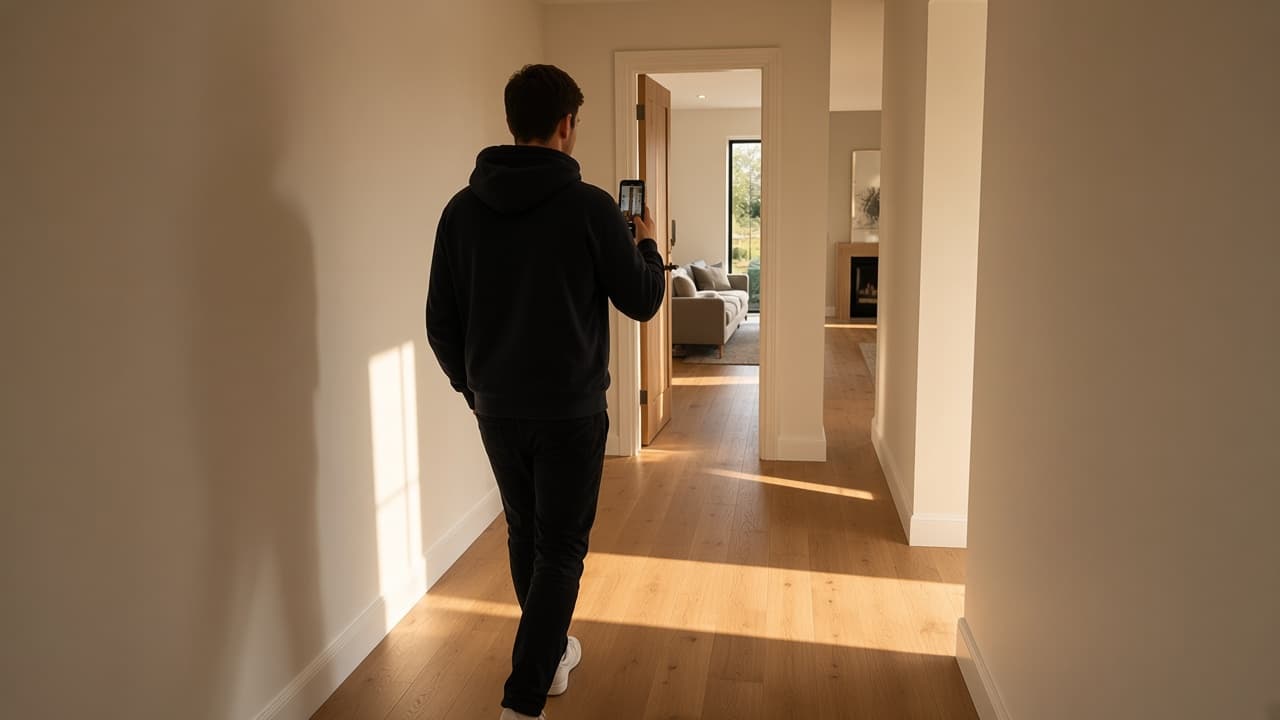
In brief
Which settings should I use?
Film at 1080p and 60 fps on the rear ultra-wide lens (0.5× or 0.6×), in portrait, with the flash off. Record two clips: the approach to the front door, then one continuous walkthrough. Upload the originals and let VideoMotion add the speed changes.
1080p
Full HD
60 fps
Frame rate
0.5× / 0.6×
Rear ultra-wide
9:16
Portrait, held upright
Normal video mode
Use the standard video mode. Leave action mode and video boost off.
Flash off
Do not light the room with the phone flash.
Lock the lens
Select the ultra-wide lens first and keep it fixed for the whole clip.
Keep it level
Hold the phone upright at chest height and walk steadily.
iPhone and Android
Lens options and controls vary by phone. After you select ultra-wide, check that 60 fps is still selected. If that combination is unavailable, use 1080p at 30 fps on the ultra-wide lens and test a short clip first.
| Setting | iPhone | Android |
|---|---|---|
| Where to find it | Settings > Camera > Record Video | Camera > Video > Settings, or the resolution / FPS control |
| Resolution / fps | 1080p HD at 60 fps | 1080p / Full HD (FHD) at 60 fps |
| Wide-angle lens | Camera > Video: select 0.5× | Select 0.5× or 0.6×, depending on the phone |
| HDR | HDR Video: Off | 10-bit HDR / HDR10+: Off |
| Stabilisation | Enhanced Stabilisation: On, where available | Standard on Pixel. Video stabilisation On on Galaxy |
| Automatic fps | Auto FPS: Off | Auto FPS: Off, if available |
| Other controls | Lock Camera: On. Action mode: Off | Video Boost: Off on Pixel |
Device guidance covers Apple, Google Pixel and Samsung.
Keep it steady
Clean the lens. Hold the phone level at chest height and walk steadily. Check a short test for dark footage or flicker. Upload the originals and let VideoMotion add the speed changes.
How to record
Ideally, two clips only.
Clip 1
Approach to the door
House: film the approach up to the front door. Apartment in a larger building: film from the building entrance, through the communal areas, to the apartment’s own front door.
Clip 2
One continuous walkthrough
Start at the property’s front door. Film the whole property in one smooth take, in the room order below. Press record once and stop after the final room.
Room order, all within clip 2
Example layout. Use the property’s actual doors and stairs, and skip spaces that are not there. Ground floor and garden come first, then go upstairs.
1
Reception
Show the main living space and how it connects to the home.
2
Kitchen
Show the worktops, key features and any dining area.
3
Garden
Walk outside and show the patio, garden and outlook.
4
Bedrooms
Film the main bedroom first, then the remaining bedrooms.
5
Bathrooms
Show the bathroom, en suites and any separate WC.
6
Other rooms
Finish with the study, utility room or additional spaces.
Keep recording
Do not stop, pause or restart recording between rooms. Continue through the garden, back inside, along hallways and on the stairs. Stop only after the final room.
Upload the originals.
VideoMotion paces the walkthrough. Film it steady, in order, with these settings.